Basics
Interface
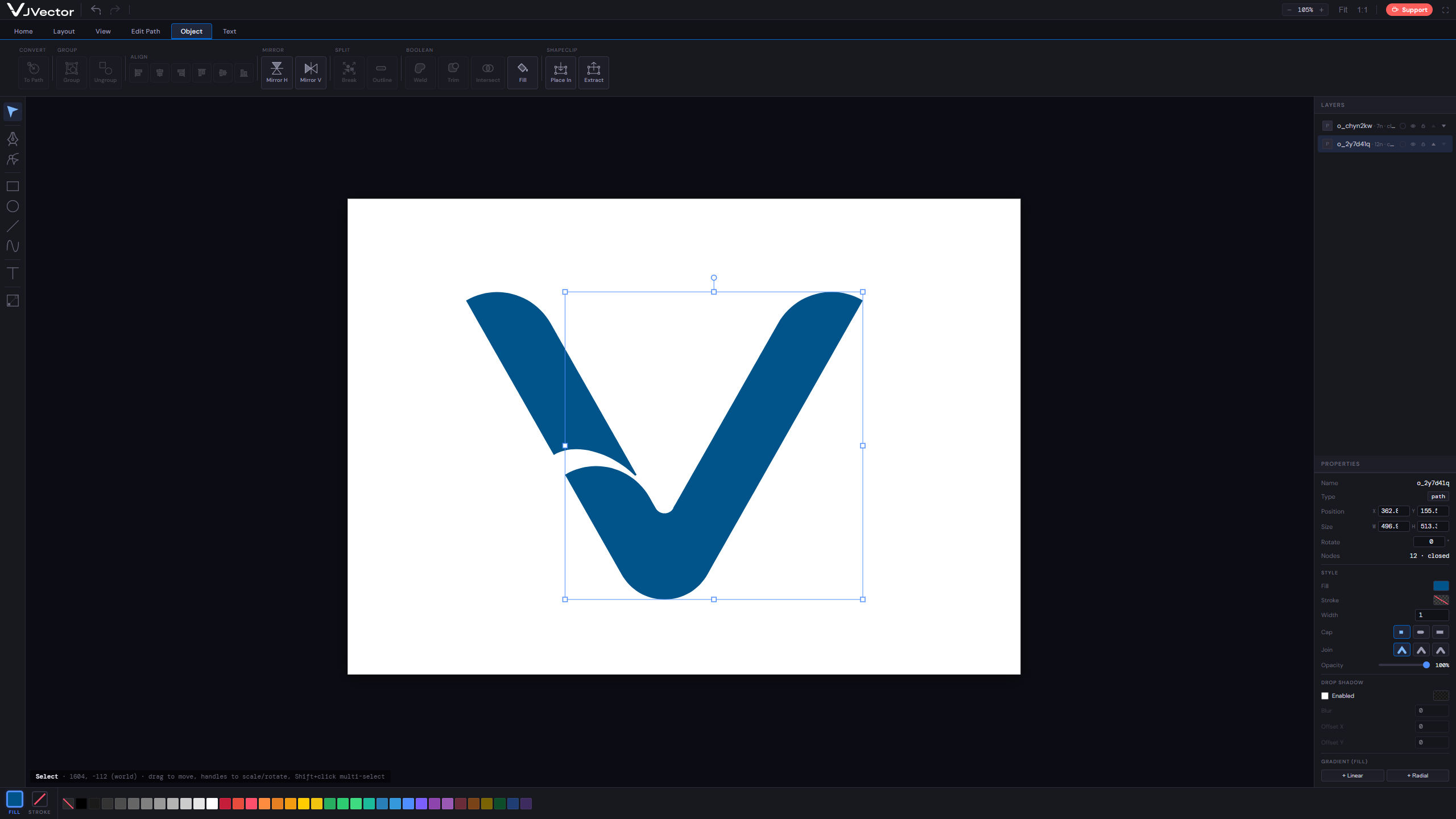
A tour of the JVector workspace - the toolbar, tabs, panels, top bar, and color bar.
If vector drawing is your passion, as it is mine, or if you are just beginning your journey into design, you will find that JVector is designed to provide a simple and comfortable working environment.
When you open the editor, you will be greeted by a familiar workspace layout. The Toolbar is located on the left side, while the Layers and Properties panels are positioned on the right.
At the bottom of the page, you will find options for coloring objects and their outlines, along with a palette of predefined colors.
To keep the interface simple and easy to use, the features are organized into tabs grouped by logical categories. By clicking on each tab, you can quickly understand its purpose and access the tools it contains.
The Top Bar contains options that are always available, such as Undo and Redo commands, Zoom controls, and a Fullscreen button in the upper-right corner, allowing you to work across the entire screen.
In the following image, you can see the main sections of the interface and the functions they perform.